
You can setup notifications in APIBridge for signal received and order placed. Currently three types of notifications are available: Sound notification, Telegram Notifications and Email Notifications.
Notifications can be particularly helpful to supervise when you are not in front of your computer. Example: if you get notifications on Signal Received, but not order placed – you can immediately check what went wrong.
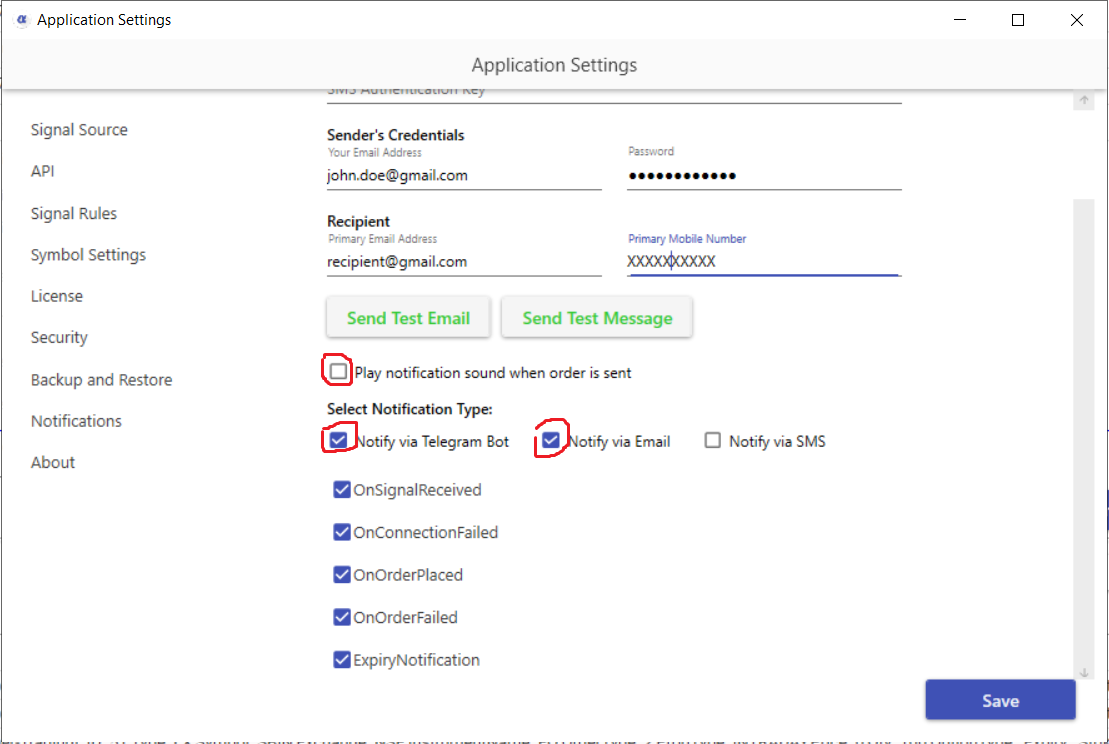
Setting up Telegram Notifications
- Make sure that you have registered on telegram with your phone number. If not, download Telegram for:
IoS, App Store – https://apps.apple.com/in/app/telegram-messenger/id686449807
Android, Play Store – https://play.google.com/store/apps/details?id=org.telegram.messenger - Desktop* – https://desktop.telegram.org/
*Desktop requires pre-registration with phone number on your mobile device. - Under the “Application Settings”, select the “Notifications” tab and check the box for “Notify via Telegram Bot”.
There are options for the type of notifications you want to subscribe to, they are:- OnSignalReceived – This send a notification when any signal is received by APIBridge.
- OnConnectionFailed – This sends a notification when the connection with broker is broken or unavailable.
- OnOrderPlaced – This sends a notification when the orders triggered are successfully placed.
- OnOrderFailed – This sends a notification when the orders triggered are not placed.
- Expiry Notification – This sends a notification when APIBridge is about to expire.
- Under the same “Application Settings”, go to the “Signal Source” tab and copy the Client Webhook URL secret by clicking on the “Copy” button.
- After Copying the Secret URL code, open http://t.me/apibridgebot and click on “SEND MESSAGE” to send a message to the APIBridge bot. This will make the browser prompt to open the Telegram Application in your system.
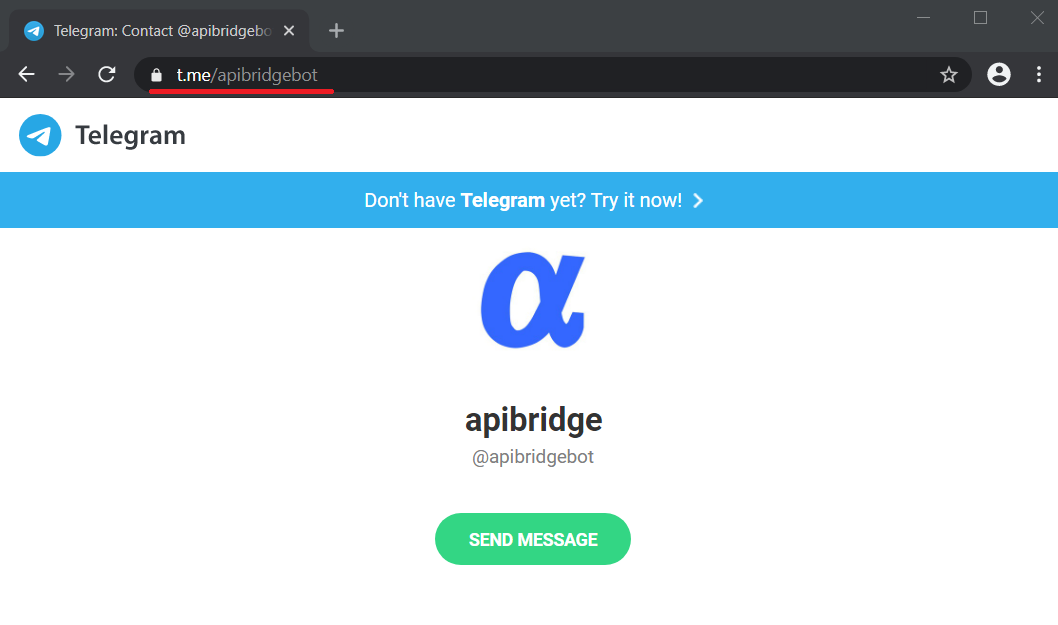
6. On opening the Telegram application, the Telegram Bot , named “apibridge” chat box will be opened and it will ask you to paste you encrypted username. Paste your copied “Client Webhook URL secret” from STEP 3 in the chat and hit the send button to start the activation process.
You will receive the “activation successful” text after the activation process is completed.
On successful completion of the above process, you will start receiving your desired trade notifications on Telegram!
IMPORTANT: Do not share your webhook secret URL with anyone. Someone can misuse it to send unauthorized signals to your APIBridge. In case you suspect misuse, email to [email protected]
Setting Up Email Notifications
The gmail app for android/ios allows you to set priority notifications for emails that you receive via APIBridge. See here how to setup priority notifications.
Now, to setup email notifications via APIBridge, allow access to less secure apps (see here). Note that APIBridge follows bank grade security standards in data transfer, however, gmail will still consider it less secure because its not authorized via gmail.
That’s all! enter your account details and send a test email. Both sender and recipient email can be same or different as you want.
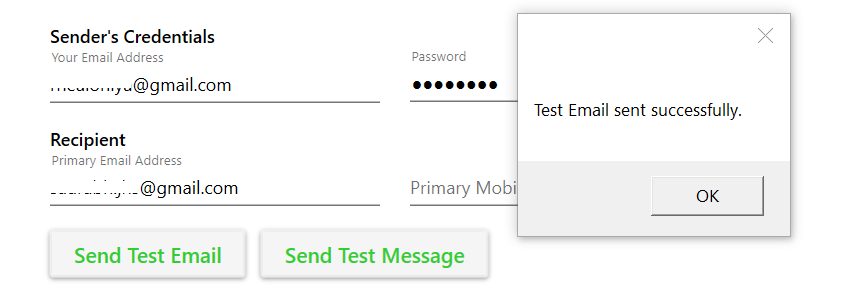
Email alerts are available currently only for Signal Received and Order Placed.
SMS alerts may also be available based on your service provider. For SMS alerts, contact the service provider from where you pruchased APIBridge.
Recent Discussion